FortiClient

Systems

Microsoft

Linux

How to Setup Samba File Shares in Linux – Quick and Easy


First of all if you didn't install the Samba, please use the below command to install it.

sudo apt update

sudo apt install samba

And you can check it whether it install or not using the below command.

whereis samba

If it successfully install you can get the some output related to the Samba, if not there is no output to visible.


Before config the Samba in your Linux environment, please backup your previous Samba configuration file if you already have the some Samba sharing settings. if not you can start it as the fresh configuration.


Please use the below command to backup the already having Samba configuration file.

sudo cp /etc/samba/smb.conf /etc/samba/smb.conf.orig

As a second step please create the folder you want share using the Samba,

mkdir /<path>/<FolderName>/

Now we can assign the permission for folder.

sudo chmod -R 0775 /<path>/<FolderName>

If you want you can check the permission using below command.

sudo chown -R nobody:nogroup /<path>/<FolderName>

Finally we need to configure the directory as a share using Samba configuration file.

sudo nano /etc/samba/smb.conf

It is locate the above path and you can open it using the above command.

Please add the below settings to the configuration file.

[FolderName]

comment = FolderName

path = /<path>/<FolderName>

public = yes

writable = yes

guest ok = yes

browsable = yes

read only = no

force user = nobody

Then press "Ctrl-O" to save it and "Ctrl-X" to exit from the nano text editor.

After that we need to restart the Samba and please use the below command to restart it.

sudo systemctl restart smbd

or

sudo service smbd restart

Now you can access it from your Windows or Linux environment using the below commands.

Windows,

\\ip-address\<FolderName>

Linux,

smb://ip-address/<FolderName>


How to open a URL with CMD? - A simple BOT attack (Windows and Linux Command)


There is a simple command to open the website using the CMD. 

  • In Windows environment please use the below command.
start "" "https://systemssupports.blogspot.com/"
  • In Linux environment please use the below command.
xdg-open https://systemssupports.blogspot.com

If you want to setup a simple BOT attack to website, please use the below command,

for /l %x in (1, 1, 10) do (
   echo %x
   start "" "https://systemssupports.blogspot.com"
)

This file will be run the 10 times and if you want it increase it into 100 or 1000 please replace the 10 as 100 or 1000.

Please note that, this will be increase your processor and ram capacity will be harm to your computer.

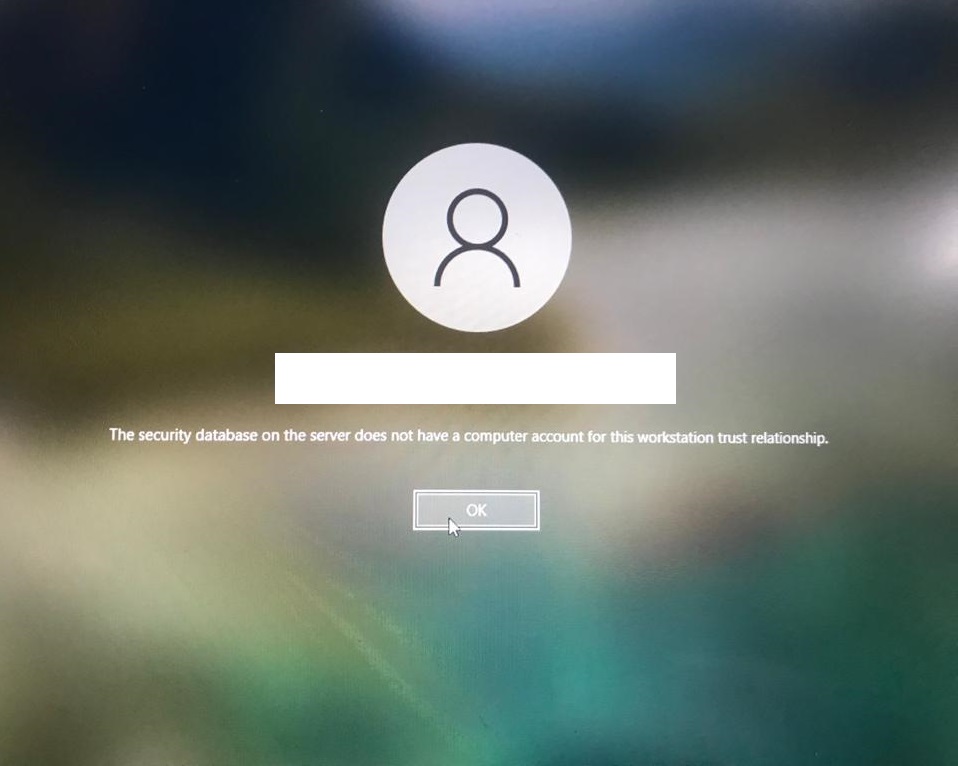
The security database on the server does not have a computer account for this workstation trust relationship.


When the above error appeared before the login that means your computer is no longer communicate with the domain and you have to re add it.

Please follow the below instruction to re added the computer.

  • Login as a Administrator
  • Go to "About you PC"

  • Select "Rename this PC(advance)"

  • Select "Network ID..."

  • Select the "This computer is part of a business network: I use it to connect to other computers at work" and Next.

  • Select "My company uses a network with a domain" and select Next.

  • Select "Next".

  • Type the username / password and domain name and then click Next. (This should be administrator's domain adding account credentials)

  • Click on "Yes"

  • Select "Do not add a domain user account" and Select Next.

  • Select Finish.

  • Select the "Restart Now" and please login and check after the restart.

How do I fix a Repeated Password Prompt in Outlook?


If the above window always appeared,

  • Check the Password or Username is correct or not,
    • If you are using the App Password and you enter the normal login password this will be always prompt until you enter the correct App Password.
  • Password is expired or not,
  • login account is disabled or expired.

The above all checked and still you appeared the above window, there might be Credential Manager issue in windows. To avoid that please follow the below instructions.

  • Go to Control Panel

  • Select Credential Manager
  • Select Windows Credentials.
  • Select outlook.office365.com.
  • Select Remove.


  • Click OK and restart the computer.
  • After restart the computer, open the Outlook and give the password.

Please note that, don't do this while open the outlook and make sure to close all the Outlook windows before remove the credentials.

How to Install a Software as an Administrative Privilege? - Quick Assist


If you have the remote privilege you cannot pass the administrative credentials to users windows unless user login as the administrator user account.

But there is one method to do it specially when you have to install the software in user's computer.

Please follow the my previous blog post to remote connect to the user computer.

How to use the Quick Assist

After that, 

  • Shift+Right Click on the software
  • Select “Run as different user

  • Give the Administrative credential as below and install it.

If the additional windows appeared in the users windows to approve it, please aske user to approve it.


How to use the Quick Assist


Please follow the below steps.

  • Open Quick Assist tool.
  • Click on “Assist another person
  • Sign in with your password.
  • Give the security code to user.
  • User need to enter that code in “Code from assistant” & click on “Share screen

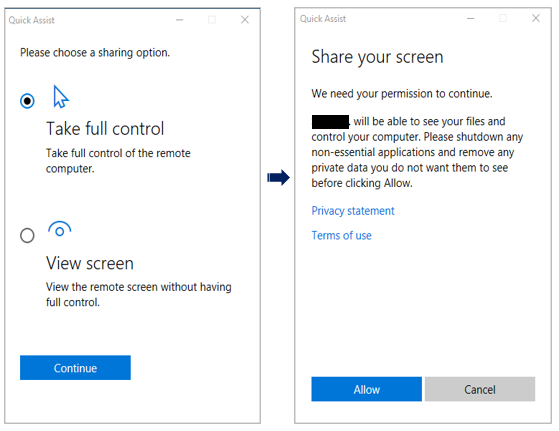
  • Select “Take full control” and click on “Continue
  • User need to click on “Allow

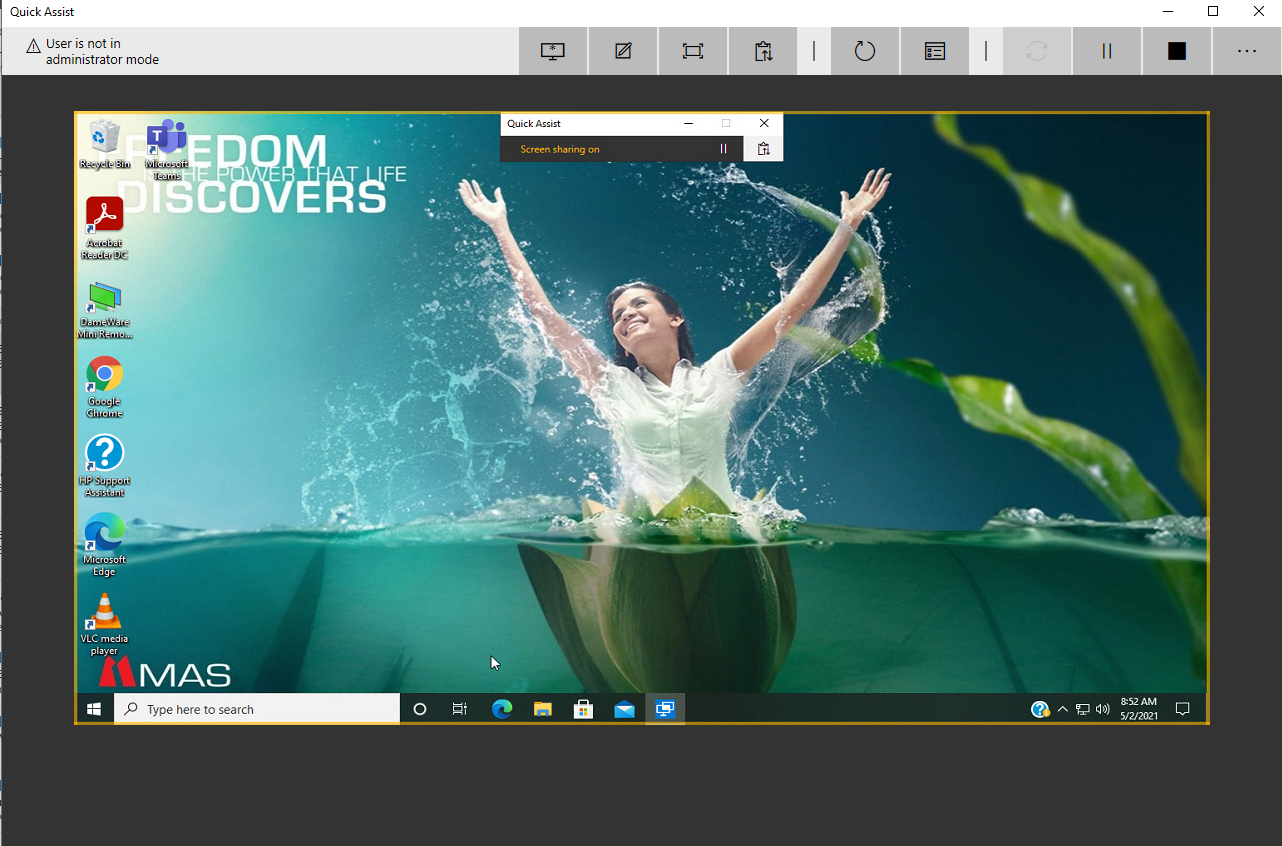
If the above task are done, you can see the users windows as the follows.