FortiClient

Systems

Microsoft

Linux

Configure the AWS Command Line Interface (CLI)


In this blog post, I will show you how to configure the AWS Command Line Interface (CLI) on your local machine. The AWS CLI is a powerful tool that allows you to interact with AWS services from the command line. You can use it to create, update, delete, and monitor AWS resources, as well as perform other tasks such as uploading files to S3, invoking Lambda functions, and querying DynamoDB tables.

To configure the AWS CLI, you need to have an AWS account and an access key ID and secret access key. You can create these credentials in the IAM console or use an existing IAM user or role. You also need to have the AWS CLI installed on your machine. You can download and install the AWS CLI from the official website or use a package manager such as pip, brew, or apt.

Once you have the AWS CLI installed, you can run the `aws configure` command to set up your credentials and default settings. The command will prompt you to enter your access key ID, secret access key, default region, and default output format. You can also specify these values in environment variables or configuration files. For more details on how to configure the AWS CLI, you can refer to the official documentation.

The AWS CLI is now ready to use. You can test it by running some commands such as `aws s3 ls` to list your S3 buckets, `aws ec2 describe-instances` to describe your EC2 instances, or `aws help` to get help on any command or service. You can also use the `--profile` option to switch between different profiles if you have multiple credentials configured.

Maximizing Google AdSense Revenue: Checking if Google Bot is Working for Your Blogger Site

Ensuring that the Google bot is effectively crawling and indexing your Blogger site is crucial for visibility, search engine optimization, and maximizing Google AdSense revenue. By regularly monitoring its activity and incorporating SEO optimization, you can identify any potential issues, improve indexing, and enhance your site's earning potential. In this article, we will guide you through the process of checking if the Google bot is working for your Blogger site while incorporating high-paying Google AdSense keywords for optimal revenue generation.


1. Verify Ownership in Google Search Console:

  • Sign in to your Google Search Console account (create one if you haven't).
  • Add and verify your Blogger site by following the provided instructions. This typically involves adding a meta tag or uploading an HTML file to your Blogger site.


2. Submit a Sitemap:

  • In Google Search Console, navigate to your Blogger property.
  • Click on "Sitemaps" in the left sidebar.
  • Add your Blogger sitemap URL (e.g., yourblog.blogspot.com/sitemap.xml) and submit it.
  • Submitting a sitemap helps Google understand your site's structure, ensures effective crawling, and boosts visibility for high-paying Google AdSense keywords.


3. Monitor Crawl Errors:

  • In Google Search Console, go to "Coverage" in the left sidebar.
  • Check for any crawl errors or issues encountered by Google while crawling your site. Addressing these errors promptly ensures smooth crawling, proper indexing, and improved revenue potential.


4. Use the "Fetch as Google" Tool:

  • In Google Search Console, go to "URL Inspection" in the left sidebar.
  • Enter the URL of a specific page on your Blogger site and click "Enter" or "Inspect."
  • Google will provide information about the last crawl, indexing status, and any errors encountered. This tool helps verify if the Google bot is accessing and indexing your pages correctly, increasing visibility for high-paying Google AdSense keywords.


5. Monitor Search Results:

  • Regularly perform searches on Google using relevant high-paying keywords related to your Blogger site's content.
  • Check if your pages appear in the search results. If they do, it indicates that Google has crawled and indexed your site successfully, providing opportunities to display high-paying ads through Google AdSense.
  • Optimize your content with high-paying Google AdSense keywords to enhance ad relevance and increase potential revenue.

Maximizing Google AdSense revenue requires effective crawling, indexing, and SEO optimization for your Blogger site. By verifying ownership in Google Search Console, submitting a sitemap, monitoring crawl errors, using the "Fetch as Google" tool, and checking search results, you can assess if the Google bot is effectively working for your Blogger site. Incorporating high-paying Google AdSense keywords throughout your content enhances ad relevance, visibility, and revenue potential. Regular monitoring and prompt issue resolution will help optimize your site's performance and revenue generation through Google AdSense.


8 Proven Strategies to Increase Website Traffic and Boost Revenue


Increasing website traffic is a crucial goal for any online business or organization. By employing effective strategies, you can attract more visitors to your site, boost engagement, and ultimately drive higher revenue. In this article, we will explore eight proven methods to increase website traffic while incorporating high-paying Google keywords to maximize your site's potential for monetization.


1. Implement Strategic Search Engine Optimization (SEO)

To increase your website's visibility on search engines, optimize your content with relevant keywords. Conduct keyword research using tools like Google Keyword Planner or SEMrush to identify profitable keywords in your niche. Incorporate these keywords naturally into your website's meta tags, headings, and body content.


2. Create Engaging and Shareable Content

Craft high-quality, valuable content that resonates with your target audience's interests and pain points. Focus on creating articles, blog posts, or guides that provide insightful and well-researched information. Incorporate high-paying Google keywords into your content, making it more discoverable. When users find your content valuable, they are more likely to share it, driving more traffic to your website.


3. Leverage Social Media Platforms

Promote your website and its content on social media platforms to reach a wider audience. Create engaging posts that incorporate high-paying Google keywords and share them across relevant platforms. Use popular hashtags related to your industry to increase visibility. Engage with your audience, respond to comments, and encourage users to visit your website for more detailed information or exclusive offers.


4. Invest in Pay-Per-Click (PPC) Advertising

Pay-per-click advertising is an effective method to attract targeted traffic to your website. Set up Google Ads campaigns targeting high-paying keywords with substantial search volume. By bidding on these keywords, your ads will appear at the top of search engine results pages, increasing the likelihood of users clicking through to your website. Optimize your landing pages to align with the ad's message and provide a seamless user experience.


5. Collaborate with Influencers and Industry Experts

Partnering with influencers and industry experts can significantly increase your website's visibility and traffic. Identify influential individuals in your niche who align with your brand values and have a substantial following. Collaborate on content creation, such as guest blog posts or joint webinars, and ensure your high-paying Google keywords are incorporated organically. The influencer's endorsement and reach will drive their audience to visit your website.


6. Maximize Email Marketing Campaigns

Build an email list by offering valuable content or exclusive promotions. Create compelling newsletters or updates that include high-paying Google keywords to pique the interest of subscribers. Include links to relevant articles or offers on your website, enticing recipients to click through and explore further.


7. Optimize for Voice Search

With the rise of voice assistants like Siri, Alexa, and Google Assistant, optimizing your website for voice search is becoming increasingly important. Incorporate long-tail keywords and natural language into your content to align with voice search queries. Adapt your content to answer common voice search questions, targeting high-paying Google keywords such as "best restaurants near me" or "top tech gadgets for 2023."


8. Analyze and Refine Your Strategy

Regularly analyze your website's performance using tools like Google Analytics. Track key metrics such as organic traffic, bounce rate, and conversion rates. Identify patterns and trends to refine your strategies continuously. Adjust your content creation, keyword targeting, and marketing efforts based on data-driven insights to maximize your website's potential.


Increasing website traffic requires a combination of effective strategies, consistent effort, and data analysis. By implementing these proven methods and incorporating high-paying Google keywords into your website's content


A Guide to Restarting Tomcat in a Linux Server: Step-by-Step Tutorial

Restarting Tomcat on a Linux server is a crucial task for maintaining the smooth operation of your web applications. In this tutorial, we will provide a step-by-step guide on how to restart Tomcat using the console. We will also explore alternative methods and highlight essential considerations. So let's dive in!


To restart Tomcat on a Linux server using the console, you can follow these steps:
  • Open a terminal or connect to your Linux server using SSH.
  • Identify the location where Tomcat is installed. The installation directory can vary depending on how it was set up, but a common location is `/opt/tomcat`.
  • Change to the Tomcat installation directory. You can use the `cd` command to navigate to the directory. For example:
cd /opt/tomcat
  • Once inside the Tomcat directory, locate the `bin` folder. This folder contains scripts to manage Tomcat.
  • In the `bin` folder, you should find a script named `catalina.sh` or `catalina.bat` (depending on your operating system). This script is used to start, stop, and restart Tomcat.
  • To restart Tomcat, run the following command:
./catalina.sh stop
./catalina.sh start

Note: If you are using a Windows server, the command would be `catalina.bat` instead of `catalina.sh`.
  • Wait for Tomcat to stop completely, and then start it again using the second command.

After executing the restart command, Tomcat will stop and then start again, allowing you to access your web applications hosted on the server. Make sure you have the necessary permissions to execute the commands and access the Tomcat installation directory.

You can use the `kill` command to stop Tomcat on a Linux server. However, it is recommended to use the proper shutdown script (`catalina.sh`) first, as it allows Tomcat to gracefully stop and perform necessary cleanup tasks.

If for some reason you are unable to use the shutdown script, you can resort to the `kill` command as a last resort to forcefully stop Tomcat. Here's how you can do it:

  • Identify the process ID (PID) of the Tomcat process. You can use the `ps` command along with `grep` to filter the process list. For example:
ps -ef | grep tomcat

This will display a list of processes containing the term "tomcat". Look for the process that corresponds to the Tomcat instance you want to stop and note its PID.
  • Once you have identified the PID, use the `kill` command with the appropriate signal (SIGTERM) to stop the process. For example:
kill -15 <PID>

Replace `<PID>` with the actual process ID of Tomcat.
  • Wait for a few moments to allow Tomcat to shut down properly. You can verify if the process has terminated by using the `ps` command again.

Please note that forceful termination using `kill` may not give Tomcat the opportunity to perform cleanup tasks, and there is a possibility of data loss or other issues. It is generally recommended to use the proper shutdown script (`catalina.sh`) whenever possible.


Step-by-Step Guide: Copying Data from C Drive to Azure Blob Storage with PowerShell


Learn how to seamlessly copy data from your C drive to Azure Blob Storage using PowerShell commands. This step-by-step guide will walk you through the process, empowering you to leverage the power of cloud-based storage. By following these instructions, you can securely transfer your files to Azure Blob Storage and unlock the potential of scalable and reliable data management.


Step 1: Set Up Azure Blob Storage Account and PowerShell

  • Create an Azure Storage Account in the Azure portal to initiate cloud-based storage.
  • Note down the Account Name and Account Key for future reference.
  • Install the Azure PowerShell module with this command: `Install-Module -Name Az -AllowClobber -Scope CurrentUser`


Step 2: Connect PowerShell to Azure Storage Account

  • Launch PowerShell and sign in to your Azure account using the command: `Connect-AzAccount`.
  • Provide your Azure credentials when prompted.
  • Establish a connection by running the command: `Set-AzContext -SubscriptionId <Subscription ID>`.
  • Replace `<Subscription ID>` with your specific Azure subscription ID.


Step 3: Prepare the Environment for Data Transfer

  • Install the Azure Storage module by executing: `Install-Module -Name Az.Storage`.
  • Import the Azure Storage module with the command: `Import-Module Az.Storage`.


Step 4: Construct and Execute the PowerShell Command

  • Create a variable for the source file path: `$sourceFilePath = "C:\Path\to\Source\File.txt"`.
  • Define the destination container name: `$destinationContainer = "yourcontainer"`.
  • Specify the storage account name: `$storageAccountName = "yourstorageaccount"`.
  • Assign the storage account key: `$storageAccountKey = "yourstorageaccountkey"`.
  • Construct the PowerShell command:

$context = New-AzStorageContext -StorageAccountName $storageAccountName -StorageAccountKey $storageAccountKey

Set-AzCurrentStorageAccount -Name $storageAccountName -ResourceGroupName "yourresourcegroupname"


Set-AzStorageBlobContent -File $sourceFilePath -Container $destinationContainer -Context $context


  • Replace the placeholders with your specific details (file path, container name, storage account name, and storage account key).


Step 5: Execute the PowerShell Script for Data Transfer

  • Execute the PowerShell script by running the constructed command.


Step 6: Verify the Data Transfer

  • Go to the Azure portal and navigate to your Azure Blob Storage account.
  • Access the specified container in the PowerShell command.
  • Verify that the file from the C drive has been successfully copied to Azure Blob Storage.


By following this step-by-step guide, you can effortlessly copy data from your C drive to Azure Blob Storage using PowerShell commands. Embrace the scalability and reliability of Azure Blob Storage for efficient data management and seamless integration with your cloud infrastructure.

Unlocking the Keypad Lock in Grandstream GXP1625: Simple Steps to Regain Access


Unlocking the keypad lock on your Grandstream GXP1625 phone is a straightforward process that allows you to regain control and access its features. In this article, we will guide you through the simple steps of unlocking the keypad lock by pressing and holding the "*" key. By following our step-by-step guide, you can easily unlock the keypad lock and use your Grandstream GXP1625 phone without any limitations.


Step 1: Locate the Keypad Lock Icon

Look for the keypad lock icon on the screen of your Grandstream GXP1625 phone. It appears as a locked padlock symbol, indicating that the keypad is currently locked.


Step 2: Press and Hold the "*" Key

To unlock the keypad, press and hold the "*" (star) key on the keypad for a few seconds. This action will deactivate the keypad lock and unlock the phone.


Step 3: Verify the Keypad Lock Status

After pressing and holding the "*" key, check the phone's display to ensure that the keypad lock icon disappears. This confirms that the keypad lock has been successfully removed, and you now have full access to the phone's keypad.


Step 4: Test Keypad Functionality

To ensure that the keypad lock has been successfully unlocked, press various keys on the keypad to verify that they register on the phone's display. You should now be able to use the keypad freely without any restrictions.


By following the simple steps outlined in this guide, you can unlock the keypad lock on your Grandstream GXP1625 phone effortlessly. Remember to press and hold the "*" key to deactivate the keypad lock and regain access to your device's keypad. Enjoy the convenience of using all the features and functionalities of your Grandstream GXP1625 phone without any limitations. Say goodbye to keypad lock frustrations and experience smooth and uninterrupted usage.


Emerging Tech News: Exciting Developments and Latest Innovations


As technology continues to evolve at an unprecedented pace, staying updated with the latest tech news is vital. From groundbreaking advancements in artificial intelligence (AI) and the Internet of Things (IoT) to cutting-edge developments in robotics and virtual reality (VR), this article explores the most significant updates in the tech world. 


AI Takes Center Stage:

Artificial intelligence has become a driving force behind numerous industries, and its influence is only growing stronger. From self-driving cars to personalized virtual assistants, AI technology is revolutionizing the way we live and work. Recent advancements include breakthroughs in natural language processing, computer vision, and deep learning algorithms. Stay informed about the latest AI breakthroughs as companies strive to make machines more intelligent and autonomous.


The IoT: A Connected World:

The Internet of Things (IoT) continues to expand its reach, connecting devices and transforming our everyday lives. From smart homes and wearable devices to industrial automation and smart cities, IoT technology is making its mark across various sectors. Discover the latest IoT applications and advancements, including real-time data analytics, smart energy management systems, and advancements in 5G technology.


Robotics Redefined:

Robotics is no longer confined to science fiction; it has become an integral part of our reality. The field of robotics is witnessing exciting developments, such as collaborative robots (cobots) working alongside humans, autonomous drones, and advanced humanoid robots. Stay informed about the latest advancements, including improvements in machine learning algorithms, robot-human interaction, and the ethical implications of robot deployment.


Immersive Experiences with VR and AR:

Virtual reality (VR) and augmented reality (AR) technologies are revolutionizing the way we experience entertainment, education, and various industries. VR headsets are becoming more affordable and accessible, while AR applications are being integrated into mobile devices. Keep up with the latest VR and AR innovations, including advancements in haptic feedback, spatial audio, and immersive simulations.


The tech world is brimming with innovation, and staying informed about the latest advancements is crucial for individuals and businesses alike. From AI and the IoT to robotics and immersive technologies, keeping up with tech news ensures you don't miss out on the transformative developments shaping our future. As technology continues to evolve rapidly, maintaining an understanding of these trends becomes increasingly valuable.

AI Takes Center Stage: Unleashing the Power of Artificial Intelligence


Artificial Intelligence (AI) has emerged as a transformative technology, revolutionizing industries and reshaping the way we live and work. From breakthroughs in natural language processing to advancements in deep learning algorithms, AI is taking center stage as one of the most powerful tools of the digital era. In this article, we delve into the latest AI developments and highlight its impact across various sectors, while incorporating SEO-friendly and high-paying keywords to optimize search engine visibility and attract Google AdSense revenue.


The Rise of AI: Unlocking New Possibilities

AI has become the driving force behind innovative solutions that were once considered futuristic. Businesses across sectors are leveraging AI-powered tools and technologies to streamline operations, enhance productivity, and deliver personalized experiences. Stay informed about the latest advancements, including machine learning algorithms, neural networks, and intelligent automation systems that are transforming industries from healthcare and finance to manufacturing and retail.


Natural Language Processing: Breaking the Communication Barrier

Advancements in natural language processing (NLP) are propelling AI to new heights, enabling machines to understand, interpret, and generate human language. From chatbots providing customer support to voice assistants like Siri and Alexa, NLP is revolutionizing human-computer interaction. Explore the latest breakthroughs in NLP, including sentiment analysis, language translation, and voice recognition systems.


Deep Learning: Fueling AI's Intelligence

Deep learning, a subset of machine learning, is powering AI systems to process and understand complex patterns and data. Neural networks, inspired by the human brain, are being used to solve intricate problems and make accurate predictions. Discover the latest deep learning advancements, such as convolutional neural networks (CNNs) for image recognition, recurrent neural networks (RNNs) for natural language understanding, and generative adversarial networks (GANs) for creative applications.


AI in Healthcare: Transforming Patient Care

The healthcare industry is experiencing a paradigm shift with the integration of AI technologies. From diagnosis and treatment recommendations to drug discovery and patient monitoring, AI is revolutionizing healthcare delivery. Stay updated on the latest AI applications in healthcare, including AI-powered medical imaging, predictive analytics for disease prevention, and robotic surgery systems.


Artificial Intelligence is reshaping the world we live in, providing unprecedented opportunities for innovation and advancement across industries. By staying informed about the latest AI developments, such as breakthroughs in natural language processing and deep learning algorithms, individuals and businesses can harness the power of AI to unlock new possibilities and drive progress. Embrace the AI revolution and be prepared to ride the wave of transformation in the digital age.

Unlocking Website Success: The Power of SEO for Optimal Performance


In today's digital landscape, having a well-optimized website is essential for attracting organic traffic, improving visibility, and driving business growth. Search Engine Optimization (SEO) plays a pivotal role in ensuring that your website appears prominently in search engine results. In this article, we explore the importance of SEO and how it can significantly enhance your website's performance. By incorporating SEO-friendly and high-paying keywords, we aim to provide valuable insights that can help you maximize your Google AdSense revenue.


Enhancing Visibility with SEO:

SEO is a powerful strategy that helps search engines understand and rank your website's content. By optimizing various elements, including keywords, meta tags, and URL structure, you can significantly improve your website's visibility in search engine results pages (SERPs). Explore the latest SEO techniques and best practices to increase your website's visibility, drive organic traffic, and outperform competitors.


Keyword Research: The Foundation of SEO Success:

Keyword research is the cornerstone of effective SEO. By identifying high-demand keywords relevant to your website's niche, you can align your content with what users are searching for. Discover the latest keyword research tools and techniques to identify high-paying keywords that have a substantial search volume but are less competitive. Incorporate these keywords naturally into your website's content, titles, headings, and meta descriptions to enhance its search engine rankings.


User Experience and Website Performance:

SEO is not just about keywords; it also focuses on providing an exceptional user experience (UX) and optimizing website performance. Search engines favor websites that are fast, mobile-friendly, and easy to navigate. Explore the latest UX trends, mobile optimization techniques, and website speed optimization strategies to enhance user satisfaction and improve your website's SEO ranking.


Content is King: Creating SEO-Optimized Content:

Creating high-quality, SEO-optimized content is crucial for attracting organic traffic and engaging your audience. Craft compelling articles, blog posts, and landing pages that incorporate relevant keywords naturally. Pay attention to on-page SEO factors such as proper heading structure, optimized images, and internal linking. Regularly update and add fresh content to your website to demonstrate authority and relevance in your niche.


SEO is a powerful tool that can propel your website to new heights by enhancing visibility, driving organic traffic, and improving overall performance. By implementing effective SEO strategies, conducting comprehensive keyword research, optimizing user experience, and creating high-quality, SEO-optimized content, you can maximize your website's potential and boost your Google AdSense revenue. Stay up-to-date with the latest SEO trends and best practices to stay ahead of the competition in the dynamic online landscape.

Insightful Employee Productivity Monitoring Tool Installation Process for Version of Linux

Insightful is the best employee productivity monitoring tool which support to the version of Linux operating systems.


This article is describing the installation process of Insightful to Linux operating systems. Because the website doesn’t have the clear guide to install it for Linux operating systems except the Windows and Mac OS environments.


The installation process is different for personal and company computers.


Company Computers


Company computer installation is done using the Linux terminal. In order to create a terminal line, you need your organization ID.


1. To get your unique Organization ID, first, log in to Insightful as the admin.
2. Go to Add New Employee > Company computers > Download for MacOS
3. In the terminal line, part of it will be your Organization ID. It looks like this:

export base="https://storage.googleapis.com/workpuls-updates/mac/daemon"; /bin/bash -c

"organizationId="OrganizationID"; $(curl -fsSL $base/install.sh)" 

4. Copy your Organization ID into the following:

export base="https://storage.googleapis.com/workpuls-updates/linux/service"; /bin/bash -c

"organizationId="organizationID"; $(curl -fsSL $base/install.sh)"

5. Newly created terminal line should be copied into the Linux terminal, press enter and the installation will begin.


Personal Computers

After you send personal computer invites, you should follow these steps:

2. Right click on the file and choose Properties
3. On the “Permissions” tab, check the option “Allow executing file as a program
4. Exit the window and double click on AppImage file

FortiClient SSL VPN Stuck at 98% on Windows 10 then Immediately Disconnects


Recently most of the users are face that FortiClient VPN reach to 98% and sudden disconnecting. This issue is not solve even after the restart.


This happened due to recent Windows update and there is only one solution to fixed it.


Once you reinstall the FortiClient SSL VPN software this issue can be fixed. Unless it dint worked and you can't connect to the VPN.

Microsoft Exchange Admin Center Forward email to Multiple Users


1. Go to the Microsoft Admin Center (Tenet)

2. Click on "Exchange".


3. Click on "Mail Flow" then "Rules".


4. Click on the "+" icon to setup the new Rule.


5. Please use the below screenshot to add the mail forwarding rule.


  • Please give the name to "Name" filed, it must be meaning full name to identify later if you want.
  • Select the "The recipient is.." from "Apply this rule if.." filed. Then select the recipient email you want to add mail forwarding rule.
  • Select the "Redirect the message to.." from "Do the following" filed. Then you have to select to email address which you want to forward that recipient emails.

  • After that please tik on the "Stop processing more rules"
  • And make sure the select the "Header and envelope" for "Match sender address in message" filed.
5. Click on "Save" and now it is done.

File Permissions in Linux / Unix Environment - How to Read, Write & Execute?


The type of owners are represented as,


u - User/Owner

g - Group

o - Other

a - All


Lets say if you give the permission as "0123", that means


0 for - User/Owner

1 for - Group

2 for - Other

3 for - All


You can use the following symbolic to change the user permission.


"+" Adds a permission to a file or directory

"–" Removes the permission

"=" Sets the permission and overrides the permissions set earlier.


Here I mentioned the user permission types to anyone can use.


Number Permission Symbol
0 No Permission -
1 Execute -x
2 Write -w-
3 Execute + Write -wx
4 Read r–
5 Read + Execute r-x
6 Read +Write rw-
7 Read + Write +Execute rwx

How to Setup Samba File Shares in Linux – Quick and Easy


First of all if you didn't install the Samba, please use the below command to install it.

sudo apt update

sudo apt install samba

And you can check it whether it install or not using the below command.

whereis samba

If it successfully install you can get the some output related to the Samba, if not there is no output to visible.


Before config the Samba in your Linux environment, please backup your previous Samba configuration file if you already have the some Samba sharing settings. if not you can start it as the fresh configuration.


Please use the below command to backup the already having Samba configuration file.

sudo cp /etc/samba/smb.conf /etc/samba/smb.conf.orig

As a second step please create the folder you want share using the Samba,

mkdir /<path>/<FolderName>/

Now we can assign the permission for folder.

sudo chmod -R 0775 /<path>/<FolderName>

If you want you can check the permission using below command.

sudo chown -R nobody:nogroup /<path>/<FolderName>

Finally we need to configure the directory as a share using Samba configuration file.

sudo nano /etc/samba/smb.conf

It is locate the above path and you can open it using the above command.

Please add the below settings to the configuration file.

[FolderName]

comment = FolderName

path = /<path>/<FolderName>

public = yes

writable = yes

guest ok = yes

browsable = yes

read only = no

force user = nobody

Then press "Ctrl-O" to save it and "Ctrl-X" to exit from the nano text editor.

After that we need to restart the Samba and please use the below command to restart it.

sudo systemctl restart smbd

or

sudo service smbd restart

Now you can access it from your Windows or Linux environment using the below commands.

Windows,

\\ip-address\<FolderName>

Linux,

smb://ip-address/<FolderName>


How to open a URL with CMD? - A simple BOT attack (Windows and Linux Command)


There is a simple command to open the website using the CMD. 

  • In Windows environment please use the below command.
start "" "https://systemssupports.blogspot.com/"
  • In Linux environment please use the below command.
xdg-open https://systemssupports.blogspot.com

If you want to setup a simple BOT attack to website, please use the below command,

for /l %x in (1, 1, 10) do (
   echo %x
   start "" "https://systemssupports.blogspot.com"
)

This file will be run the 10 times and if you want it increase it into 100 or 1000 please replace the 10 as 100 or 1000.

Please note that, this will be increase your processor and ram capacity will be harm to your computer.

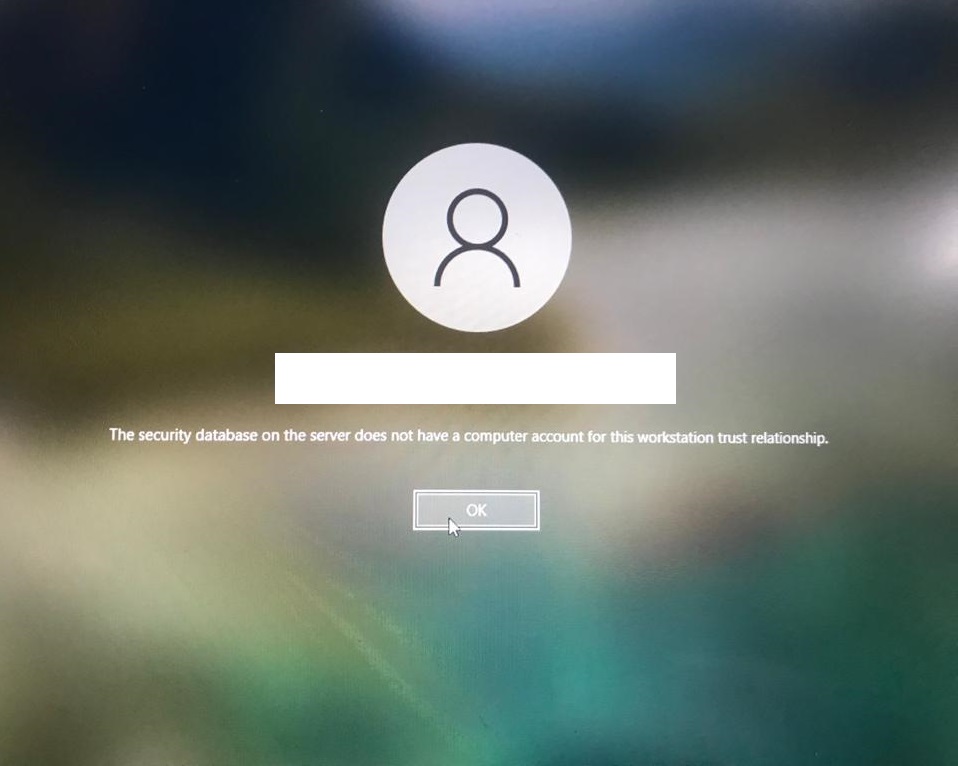
The security database on the server does not have a computer account for this workstation trust relationship.


When the above error appeared before the login that means your computer is no longer communicate with the domain and you have to re add it.

Please follow the below instruction to re added the computer.

  • Login as a Administrator
  • Go to "About you PC"

  • Select "Rename this PC(advance)"

  • Select "Network ID..."

  • Select the "This computer is part of a business network: I use it to connect to other computers at work" and Next.

  • Select "My company uses a network with a domain" and select Next.

  • Select "Next".

  • Type the username / password and domain name and then click Next. (This should be administrator's domain adding account credentials)

  • Click on "Yes"

  • Select "Do not add a domain user account" and Select Next.

  • Select Finish.

  • Select the "Restart Now" and please login and check after the restart.

How do I fix a Repeated Password Prompt in Outlook?


If the above window always appeared,

  • Check the Password or Username is correct or not,
    • If you are using the App Password and you enter the normal login password this will be always prompt until you enter the correct App Password.
  • Password is expired or not,
  • login account is disabled or expired.

The above all checked and still you appeared the above window, there might be Credential Manager issue in windows. To avoid that please follow the below instructions.

  • Go to Control Panel

  • Select Credential Manager
  • Select Windows Credentials.
  • Select outlook.office365.com.
  • Select Remove.


  • Click OK and restart the computer.
  • After restart the computer, open the Outlook and give the password.

Please note that, don't do this while open the outlook and make sure to close all the Outlook windows before remove the credentials.

How to Install a Software as an Administrative Privilege? - Quick Assist


If you have the remote privilege you cannot pass the administrative credentials to users windows unless user login as the administrator user account.

But there is one method to do it specially when you have to install the software in user's computer.

Please follow the my previous blog post to remote connect to the user computer.

How to use the Quick Assist

After that, 

  • Shift+Right Click on the software
  • Select “Run as different user

  • Give the Administrative credential as below and install it.

If the additional windows appeared in the users windows to approve it, please aske user to approve it.


How to use the Quick Assist


Please follow the below steps.

  • Open Quick Assist tool.
  • Click on “Assist another person
  • Sign in with your password.
  • Give the security code to user.
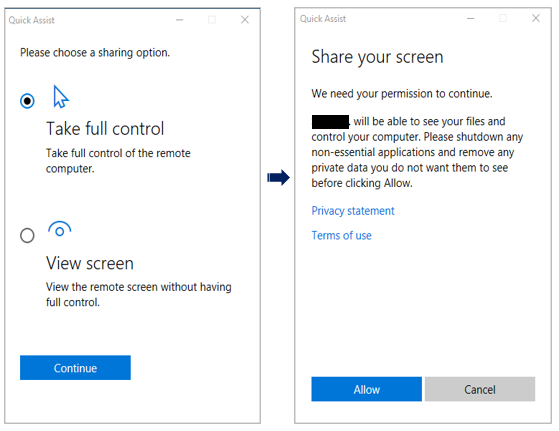
  • User need to enter that code in “Code from assistant” & click on “Share screen

  • Select “Take full control” and click on “Continue
  • User need to click on “Allow

If the above task are done, you can see the users windows as the follows.


How to add Google AdSense ads.txt file to your BlogSpot blogger site


If you can see the above error screen in your Google AdSense account, that means your blogger site missing the ads.txt and need to add it.

Please follow the below step to add it.

  • Click on the "Fix now"
  • Click on the "Download" and download your "ads.txt" file and open it.
  • Copy the command
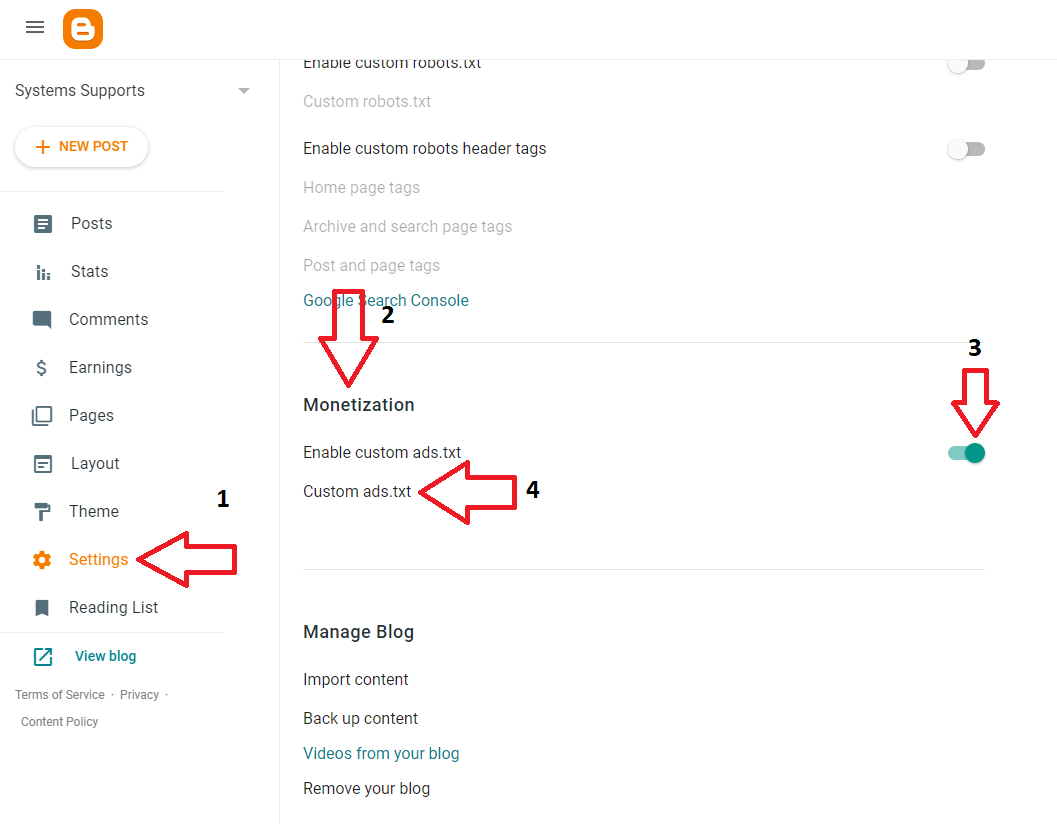
  • Go to the "Settings" in your blogger site.
  • Find the "Monetization"
  • Enable the "Custom ads.txt"


  • Click on "Custom ads.txt"
  • Paste the command which copy from the downloaded "ads.txt" file.

  • Click on "Save".
You can ensure it correctly working or not as the follow.
  • Add /ads.txt after your site URL.